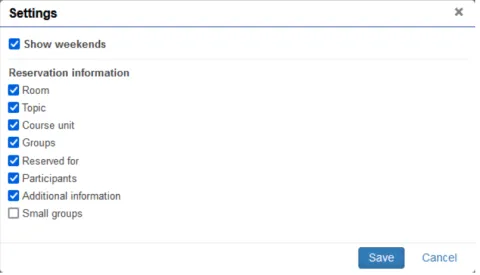
Calendar list view
List view
- From "Select view" you can switch between list view and calendar view
- You can move to a certain date on the calendar by selecting "Move to date". There are also "Month", "Week" and "Day" buttons, which allow you to change the calendar view accordingly.
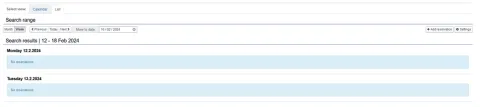
Reserving Counselling Rooms and Group Study Rooms via list view
1. You can make a new reservation by choosing the "Add reservation" button on the right-hand side, which requires you to set the date manually or directly from the desired day by choosing the "Add a reservation for the day" button.
2. New Reservation window opens. Fill out the necessary information.
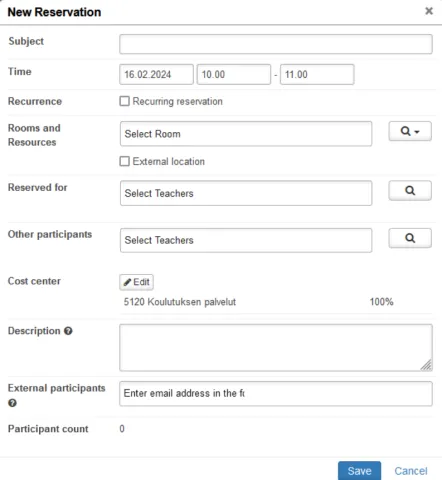
- Subject: Write the reason for the reservation (e.g., group study) here. NB! All the information on a reservation is public and can be seen by other students and the staff.
- Time: Choose the start time and the end time of your reservation.
- Reserved for: Your name is shown here as a default. Do not remove it.
- If you are creating a reservation for multiple people, you can also add the names of the other students here. This way they can see the reservation on their calendars and have the right to edit it.
- If you want the other participants to be able to see the reservation on their calendars, but do not wish to give them the right to edit it, you can add their names to the field Other participants
- Rooms and Resources: Choose the counselling room that you want to reserve. Use the Search rooms tool (magnifying glass icon) to find a room that is available at the time you have chosen.
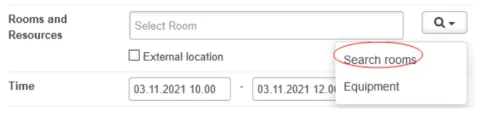
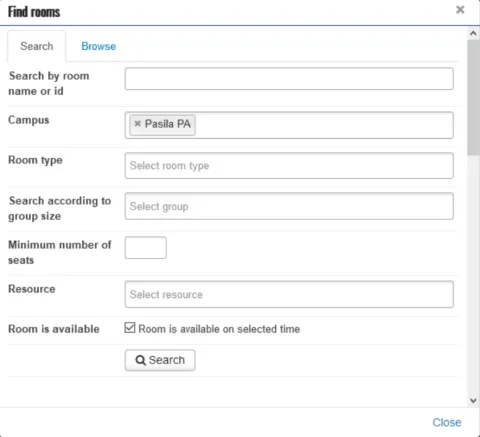
- Find rooms window opens. Write “Pasila PA” or “Haaga HA” on the Campus field to see the free counselling rooms or library group study rooms on the chosen campus [NB. Counselling rooms are only available in Pasila]. Check that the box next to Room is available on selected time” has been selected.
- Choose on the Search button and scroll down to see the search results.
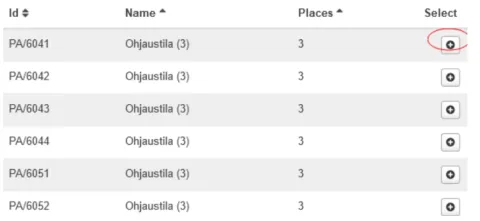
- Choose the room you want to reserve by + button. Find rooms window closes.
3. Choose ”Save”. You do not have to fill out the other information on the New Reservation window.
Editing and deleting a reservation
To edit or delete your previously saved reservation, go to the reservation and select ‘’Show info’’ function and then choose the "Edit" or "Delete" function.

NB! Please delete your reservation if you do not need the room.
Calendar settings
Calendar settings let you choose what the calendar shows. You can edit the calendar view settings by clicking on the Settings button.